

Language Selection

English French German Italian Portuguese Spanish

Ubuntu laptops: Here are the top 10 picks

Filed under
GNU
Linux
Ubuntu

When buying a laptop, we mainly look for a system with a decent CPU and RAM. Depending on our requirements, we also search for the one that offers adequate space, a regular web browsing facility, and productivity. Some of you may also want the system to be compatible with video streaming and light to heavy gaming.

You get all of these and much more with Ubuntu laptops. Many renowned PC manufacturing brands certify Ubuntu for their laptops to ensure fast, smooth, reliable, and efficient performance. Ubuntu laptops come with high-end software.

The best part is that they are free of viruses and use fewer resources (your computers) than their counterparts. Ubuntu-certified hardware, from top-end workstations to super-portable systems, goes through stringent testing and quality review procedures. This approach ensures it runs well, sans any troubles.

Read more

Also: Tuxedo launches second-gen Pulse Linux Laptop • The Register

Linux laptops: This is a good option for those keen...

  • Linux laptops: This is a good option for those keen on customisation

    Ideally, you can install Linux on almost every laptop you buy. However, there’s no assurance that the hardware in the laptop will work with Linux. Some of the laptop’s functions won’t operate if the proper hardware drivers are unavailable for the Linux hardware you choose, and the laptop’s battery life may suffer due to poor optimisation.

    Linux is pre-installed on some laptops. These companies officially support Linux on their hardware, so you can be certain that everything will operate as expected and that the laptop will continue to function with future software upgrades.

    Compared to other operating systems like Windows, Linux is more secure and is less vulnerable than others. There are more software updates while using Linux than operating systems, and these updates are far quicker. A characteristic that offers a substantial edge over other operating systems is customisation. Considering that the operating system is open source, you can alter, add, or remove a feature as needed. Linux is freely available on the web to download and use. Since Linux and a lot of its software are released under the GNU General Public Licence, you do not need to purchase a licence for it.

Comment viewing options

Select your preferred way to display the comments and click "Save settings" to activate your changes.

More in Tux Machines

today's howtos

  • How to Change Comment Color in Vim – Fix Unreadable Blue Color

    Are you annoyed about the comment color in vim? The dark blue color of the comment is often hard to read. In this tutorial, we learn how to change the comment color in Vim. There are few methods we can use to look vim comment very readable.

  • How to Add Repository to Debian

    APT checks the health of all the packages, and dependencies of the package before installing it. APT fetches packages from one or more repositories. A repository (package source) is basically a network server. The term "package" refers to an individual file with a .deb extension that contains either all or part of an application. The normal installation comes with default repositories configured, but these contain only a few packages out of an ocean of free software available. In this tutorial, we learn how to add the package repository to Debian.

  • Making a Video of a Single Window

    I recently wanted to send someone a video of a program doing some interesting things in a single X11 window. Recording the whole desktop is easy (some readers may remember my post on Aeschylus which does just that) but it will include irrelevant (and possibly unwanted) parts of the screen, leading to unnecessarily large files. I couldn't immediately find a tool which did what I wanted on OpenBSD [1] but through a combination of xwininfo, FFmpeg, and hk I was able to put together exactly what I needed in short order. Even better, I was able to easily post-process the video to shrink its file size, speed it up, and contort it to the dimension requirements of various platforms. Here's a video straight out of the little script I put together: [...]

  • Things You Can And Can’t Do

    And it got me thinking about what you can and can’t do — what you do and don’t have control over.

  • allow-new-zones in BIND 9.16 on CentOS 8 Stream under SELinux

    We run these training systems with SELinux enabled (I wouldn’t, but my colleague likes it :-), and that’s the reason I aborted the lab: I couldn’t tell students how to solve the cause other than by disabling SELinux entirely, but there wasn’t enough time for that.

  • Will the IndieWeb Ever Become Mainstream?

    This is an interesting question, thanks for asking it, Jeremy. I do have some history with the IndieWeb, and some opinions, so let’s dive in.

    The short answer to the question is a resounding no, and it all boils down to the fact that the IndieWeb is really complicated to implement, so it will only ever appeal to developers.

  • How to Install CUPS Print Server on Ubuntu 22.04

    If your business has multiple personal computers in the network which need to print, then we need a device called a print server. Print server act intermediate between PC and printers which accept print jobs from PC and send them to respective printers. CUPS is the primary mechanism in the Unix-like operating system for printing and print services. It can allow a computer to act as a Print server. In this tutorial, we learn how to set up CUPS print server on Ubuntu 22.04.

Open Hardware: XON/XOFF and Raspberry Pi Pico

  • From XON/XOFF to Forward Incremental Search

    In the olden days of computing, software flow control with control codes XON and XOFF was a necessary feature that dumb terminals needed to support. When a terminal received more data than it could display, there needed to be a way for the terminal to tell the remote host to pause sending more data. The control code 19 was chosen for this. The control code 17 was chosen to tell the remote host to resume transmission of data.

  • Raspberry Pi Pico Used in Plug and Play System Monitor | Tom's Hardware

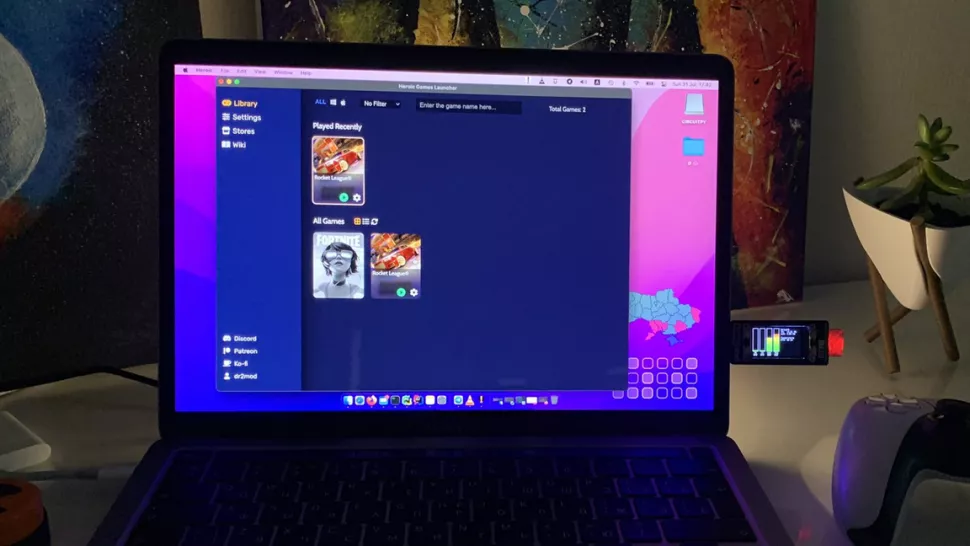
    Dmytro Panin is at it again, creating a teeny system monitor for his MacBook from scratch with help from our favorite microcontroller, the Raspberry Pi Pico. This plug-and-play system monitor (opens in new tab) lets him keep a close eye on resource usage without having to close any windows or launch any third-party programs. The device is Pico-powered and plugs right into the MacBook to function. It has a display screen that showcases a custom GUI featuring four bar graphs that update in real-time to show the performance of different components, including the CPU, GPU, memory, and SSD usage. It makes it possible to see how hard your PC is running at a glance.

Security Leftovers

How to Apply Accent Colour in Ubuntu Desktop

A step-by-step tutorial on how to apply accent colour in Ubuntu desktop (GNOME) with tips for Kubuntu and others. Read more