



Freshly Squeezed Debian: Installing from Live DVD
Submitted by eco2geek on Tuesday 20th of April 2010 09:26:03 AM
Filed under 
Last month, the Debian Live Project released live CD and DVD images of the next version of Debian, codenamed "Squeeze." (For an overview of the various Debian repositories and codenames, see this Wikipedia article.) They included an installer that uses the live filesystem rather than packages, so it has the advantages of being fast and allowing you to preview on the live media, what you eventually get on your hard drive. This may not seem like a big deal, since most modern Linux distributions use this installation method, but it's still fairly new for Debian.
I downloaded and installed the 64-bit GNOME version.
Installation
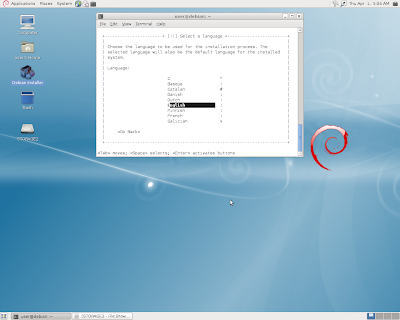
A graphical, wizard-like installer (like Ubuntu's) is not available; the installer runs in a terminal. (Other than nice anti-aliased fonts, there's not much difference between the current graphical installer and the traditional ncurses-based installer anyway, so you're not missing much.)
 |
| From Debian Squeeze from Live DVD |
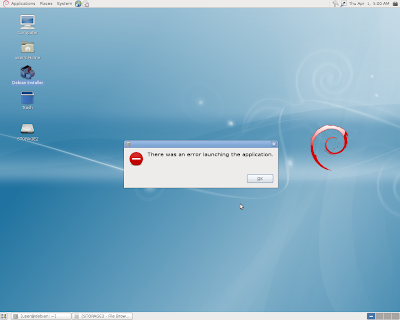
Since it's an alpha release, bugs are to be expected. They weren't hard to find, starting off with the desktop icon that's supposed to launch the installer. The *.desktop file is apparently malformed and threw up an error message.
 |
| From Debian Squeeze from Live DVD |
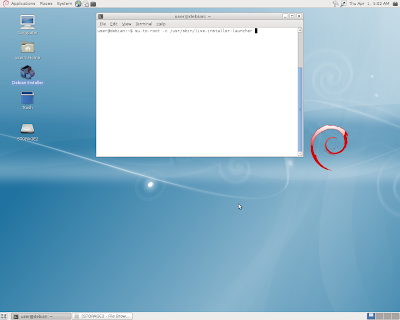
However, it's easy enough to copy the installer's command line from the icon's properties and launch it using the terminal, which is where we would end up anyway.
 |
| From Debian Squeeze from Live DVD |
 |
| From Debian Squeeze from Live DVD |
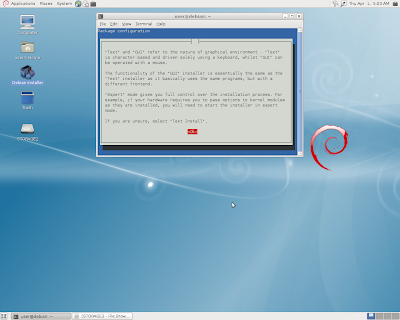
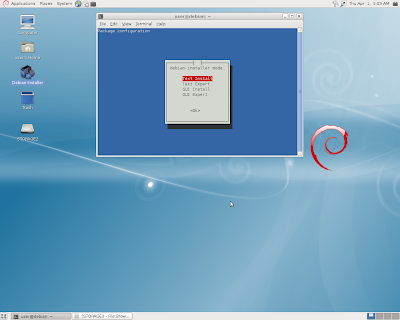
The next two screens that came up in the terminal explained the difference between the text-based installer and the GUI installer. Since a GUI installer isn't available, they seemed to be leftovers from the regular installation program.
 |
| From Debian Squeeze from Live DVD |
The installer looks and feels just like the regular Debian installer. (Speaking of bugs, somewhere during the installation process, my ability to run applications, including gnome-screenshot, went away, for some unknown reason.) Perhaps the biggest change in Squeeze is that it now uses GRUB 2 as its bootloader.
Post-install
 |
| From Debian Squeeze from Live DVD |
 |
| From Debian Squeeze from Live DVD |
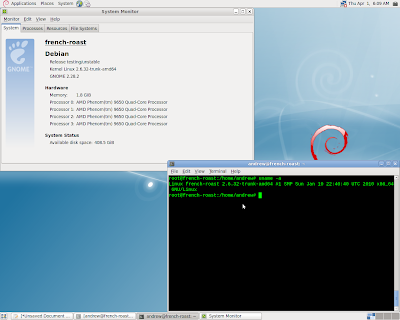
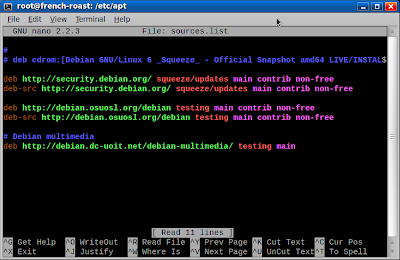
Amazingly enough, after installation was finished and the system rebooted, it looked exacly like it did when running from the live DVD. One problem: "/etc/apt/sources.list" was empty except for the Debian security repository. Regular repositories had to be added manually.
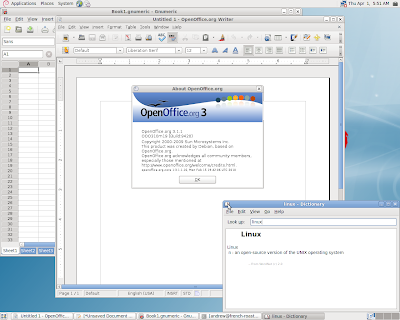
Installed applications included the following:
 |
| From Debian Squeeze from Live DVD |
| Office-related applications: |
| OpenOffice.org 3.1.1 |
| Gnumeric spreadsheet 1.10.0 |
| AbiWord (Note: It wouldn't run from the Live DVD due to an error about a missing library. This was automatically fixed via a dist-upgrade.) |
| Evolution 2.28.2 |
 |
| From Debian Squeeze from Live DVD |
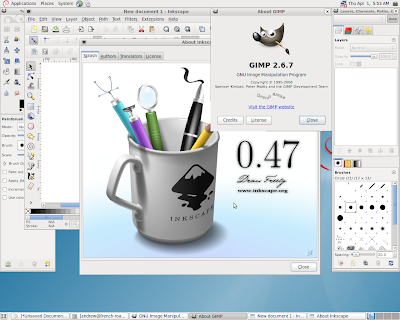
| Graphics-related applications: |
| GIMP 2.6.7 |
| Inkscape 0.47 |
 |
| From Debian Squeeze from Live DVD |
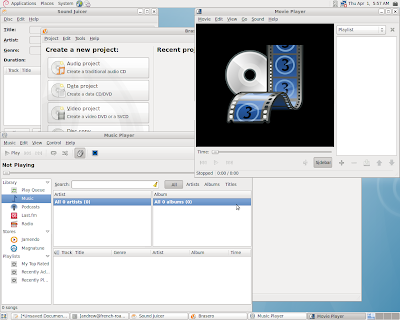
| Multimedia-related applications: |
| Totem Movie Player 2.28.5 |
| Brasero CD burner 2.28.3 |
| Rhythmbox 0.12.6 |
 |
| From Debian Squeeze from Live DVD |
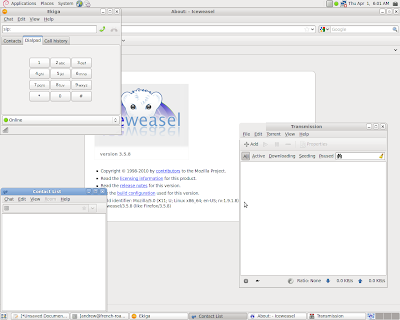
| Internet-related applications: |
| ekiga 3.2.6 |
| Empathy 2.28.2 |
| Transmission bittorrent client 1.9.1 |
| Iceweasel (debranded Firefox) 3.5.8 |
| Other: |
| GNU make 3.81 |
| Kernel 2.6.32-trunk-amd64 |
| GNOME 2.28.2 |
And Finally...
Your experience and my experience will differ based on the hardware we have. Personally, I found that Debian Squeeze didn't support my motherboard's on-board audio chipset (Via VT1708B). Apparently it's only supported by ALSA v1.0.22.1 and above, and so far the only distro I've found that supports it out of the box is Fedora 13. Also, I still haven't been able to install the proprietary NVIDIA drivers the "Debian way" using a stock Debian kernel. Instead, I have to use the NVIDIA installer. This means that every time there's an update to one of X.org's components, or a new kernel's installed, I have to reinstall the NVIDIA driver. Finally, GRUB 2 is not very user-friendly, and it doesn't seem to "play nice" with the NVIDIA driver. I've found that switching from GRUB 2 to gdm (the GNOME display manager) won't necessarily work when GRUB 2's running in any mode other than 640x480.
 |
| From Debian Squeeze from Live DVD |
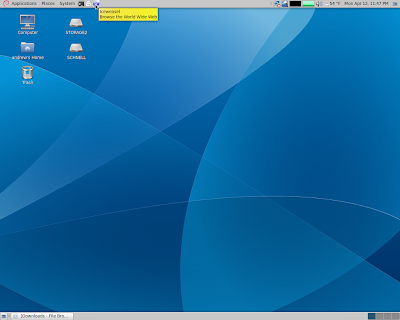
And then there's Debian's default look 'n' feel, which, in my opinion, could use some polish.
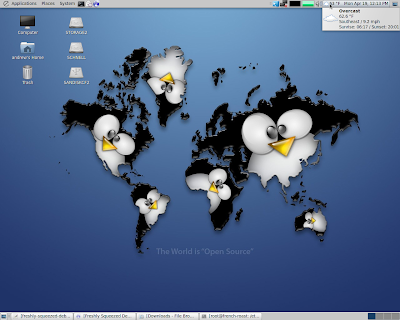 |
| From Debian Squeeze from Live DVD |
I don't want to seem overly critical, though. My impression is that Debian values stability and functionality over looks and release schedules. You can look at this alpha version as a preview of Debian's next stable release, or you could simply run Debian Testing as a constantly-updated "rolling release." Despite the "testing" moniker, it's a pretty good balance between the stablity of Debian Stable and the more up-to-date applications in Debian Unstable. It's also got a huge repository of over 25,000 available packages and an excellent package management system going for it.
— Andrew Heil, 4/19/10
»
-

- eco2geek's blog
- Login or register to post comments
 Printer-friendly version
- 42181 reads
 PDF version
More in Tux Machines
- Highlights
- Front Page
- Latest Headlines
- Archive
- Recent comments
- All-Time Popular Stories
- Hot Topics
- New Members
digiKam 7.7.0 is released
After three months of active maintenance and another bug triage, the digiKam team is proud to present version 7.7.0 of its open source digital photo manager. See below the list of most important features coming with this release.
|
Dilution and Misuse of the "Linux" Brand
|
Samsung, Red Hat to Work on Linux Drivers for Future Tech
The metaverse is expected to uproot system design as we know it, and Samsung is one of many hardware vendors re-imagining data center infrastructure in preparation for a parallel 3D world.
Samsung is working on new memory technologies that provide faster bandwidth inside hardware for data to travel between CPUs, storage and other computing resources. The company also announced it was partnering with Red Hat to ensure these technologies have Linux compatibility.
|
today's howtos
|


.svg_.png)

 Content (where original) is available under CC-BY-SA, copyrighted by original author/s.



Recent comments
1 year 11 weeks ago
1 year 11 weeks ago
1 year 11 weeks ago
1 year 11 weeks ago
1 year 11 weeks ago
1 year 11 weeks ago
1 year 11 weeks ago
1 year 11 weeks ago
1 year 11 weeks ago
1 year 11 weeks ago