



Window Shuffler: Tiling Window Management From Ubuntu Budgie
Submitted by Roy Schestowitz on Saturday 18th of December 2021 12:32:55 AM
Filed under 

This tutorial will showcase how you can be very productive with an on-demand tiling system that does not require you to make a hard choice at login. Window Shuffler allows you to use tiling only when you want, on the monitor or virtual desktop you want, without requiring you to log off your regular DE and switch to a tiling environment.
Since I started using it, I have a hard time using any other desktop environment that does not bring the features of Window Shuffler.
Window Shuffler is developed by Jacob Vlijm of Ubuntu Budgie. It is installed by default on Ubuntu Budgie. Various users reported that it works well on other GTK desktop environments, such as Ubuntu MATE. I believe it is also available on the AUR for arch users… btw.
Having said that, there are some integrations that are done very well on Ubuntu Budgie, so for anyone willing to give it a try, I recommend to spin up a live ISO of the latest Ubuntu Budgie. By doing so, you will be able to have a taste of the full experience of Window Shuffler.
[...]
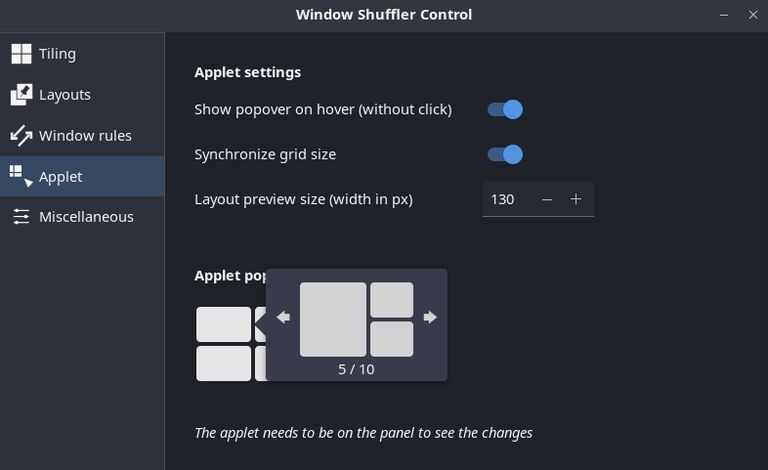
Window Shuffler applet is a nice, optional feature introduced by Jacob Vlijm with Ubuntu Budgie 21.10. It allows us to add an applet to Budgie panel, which controls Shuffler tiling. This is very useful especially for users that are new to tiling, or those that have not learned the shortcuts, or that like tiling windows but are not keyboard fanatics.
In order to get started, we first have to open Budgie Desktop Settings, Panels, Top Panel, and click the + Icon next to Add applet. Scroll to the bottom, and add Window Shuffler. I am going to leave it in the default position, next to the clock in the middle of my top panel. Feel free to move it around as needed. We can now close Budgie Desktop Settings.
Next step is to open our Window Shuffler Control. We can now do this from the gear icon in our new Applet.

»
-

- Login or register to post comments
 Printer-friendly version
- 2392 reads
 PDF version
More in Tux Machines
- Highlights
- Front Page
- Latest Headlines
- Archive
- Recent comments
- All-Time Popular Stories
- Hot Topics
- New Members
digiKam 7.7.0 is released
After three months of active maintenance and another bug triage, the digiKam team is proud to present version 7.7.0 of its open source digital photo manager. See below the list of most important features coming with this release.
|
Dilution and Misuse of the "Linux" Brand
|
Samsung, Red Hat to Work on Linux Drivers for Future Tech
The metaverse is expected to uproot system design as we know it, and Samsung is one of many hardware vendors re-imagining data center infrastructure in preparation for a parallel 3D world.
Samsung is working on new memory technologies that provide faster bandwidth inside hardware for data to travel between CPUs, storage and other computing resources. The company also announced it was partnering with Red Hat to ensure these technologies have Linux compatibility.
|
today's howtos
|


.svg_.png)

 Content (where original) is available under CC-BY-SA, copyrighted by original author/s.


Recent comments
1 year 11 weeks ago
1 year 11 weeks ago
1 year 11 weeks ago
1 year 11 weeks ago
1 year 11 weeks ago
1 year 11 weeks ago
1 year 11 weeks ago
1 year 11 weeks ago
1 year 11 weeks ago
1 year 11 weeks ago