



today's howtos
Submitted by Roy Schestowitz on Tuesday 26th of July 2022 11:32:30 AM
Filed under
-
How I use Bash to automate tasks on Linux
The Bash command line is a great way to automate tasks. Whether you are running Linux on a server and need to manipulate log files or other data, or you're a desktop user who just wants to keep files tidy, you can use a few automation features in Bash to make your work easier.
-
Shrink PDFs with this Linux tool
Excluding HTML, PDF files are probably the most popular document format on the web. Unfortunately, they're not compact. For example, I like to download free eBooks. A quick glance at my eBook directory shows that its 75 PDF files consume about 500 megabytes. On average, that's over 6.6 MB for each PDF file.
Couldn't I save some storage space by compressing those files? What if I want to send a bundle of them through email? Or host them for download on a website? The transmission would be faster if these files were made smaller. This article shows a simple way to reduce PDF file size. The benefit is that it shrinks your PDFs transparently without altering the data content in any way. Plus, you can also compact many PDF files with a single command.
Compare this to the alternatives. You could upload your PDF files to one of the many online file compression websites. Several are free, but you risk the privacy of your documents by uploading them to an unknown website. More importantly, most websites shrink PDFs by tampering with the images they contain. They either change their resolution or their sizes. So you trade lower image quality to get smaller PDF files. That's the same trade-off you face using interactive apps like LibreOffice, or Ghostscript line commands like gs and ps2pdf. The technique we'll illustrate in this article compacts PDFs without altering either the images they contain or their data content. And you can reduce many PDFs with a single line command. Let's get started.
-
How to Work with PDF Files Using ONLYOFFICE Docs in Linux
Those Linux users who deal with PDF files have plenty of programs to choose from. More precisely, there exist a great number of dedicated PDF tools that can be used for various tasks.
For example, you can install a PDF viewer to open the required files for reading or get a PDF editor to be able to perform certain operations, such as typing text, adding annotations or cropping pages.
-
How to Setup Two-Factor Authentication For SSH In Linux
By default, SSH already uses secure data communication between remote machines, but if you want to add some extra security layer to your SSH connections, you can add a Google Authenticator (two-factor authentication) module that allows you to enter a random one-time password (TOTP) verification code while connecting to SSH servers. You’ll have to enter the verification code from your smartphone or PC when you connect.
The Google Authenticator is an open-source module that includes implementations of one-time passcodes (TOTP) verification tokens developed by Google.
»
-

- Login or register to post comments
 Printer-friendly version
- 1099 reads
 PDF version
More in Tux Machines
- Highlights
- Front Page
- Latest Headlines
- Archive
- Recent comments
- All-Time Popular Stories
- Hot Topics
- New Members
today's howtos
| Open Hardware: XON/XOFF and Raspberry Pi Pico
|
Security Leftovers
| How to Apply Accent Colour in Ubuntu Desktop
A step-by-step tutorial on how to apply accent colour in Ubuntu desktop (GNOME) with tips for Kubuntu and others.
|
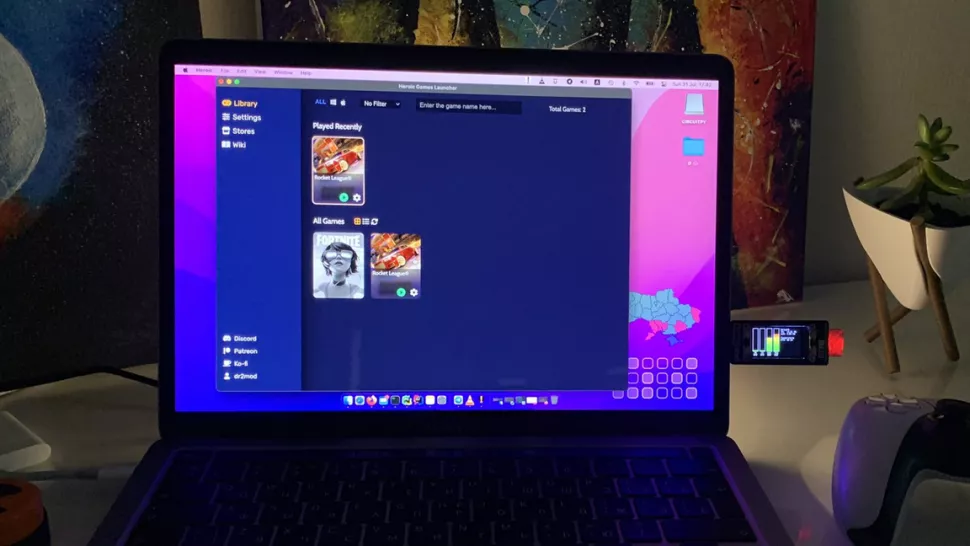


 This section of TuxMachines will no longer have new stories in it (with some caveats, including this post). To see the latest stories go to


.svg_.png)

 Content (where original) is available under CC-BY-SA, copyrighted by original author/s.



Recent comments
2 days 6 hours ago
2 days 10 hours ago
2 days 10 hours ago
3 days 17 hours ago
3 days 18 hours ago
3 days 19 hours ago
3 days 19 hours ago
3 days 19 hours ago
3 days 22 hours ago
4 days 25 sec ago