

Language Selection

English French German Italian Portuguese Spanish

Linux Mint 21 Beta Is Now Available for Download, Here’s a First Look

Filed under
Linux
News

Development of Linux Mint 21 “Vanessa” kicked off a few months ago, and the upcoming distribution will be based on the repositories and base packages of Canonical’s latest Ubuntu 22.04 LTS (Jammy Jellyfish) operating system series, which will be supported for the next five years, just like Linux Mint 21.

Linux Mint 21 will ship not only with newer core components (e.g. Linux kernel, Mesa graphics stack, GCC, GNU C Library) from Ubuntu 22.04 LTS, but also with a newer version of the in-house developed Cinnamon desktop environment, namely Cinnamon 5.4, which brings numerous new features and improvements.

Read more

Download Linux Mint 21 Vanessa Beta now

  • Download Linux Mint 21 'Vanessa' Beta now

    Back in April, we learned that Linux Mint 21 would be named "Vanessa." Not much was revealed about the operating system at the time, but the developers did share a small bit of information. For instance, we now know that version 21 of Linux Mint will be based on Ubuntu 22.04, and as expected, the same three desktop environments will once again be offered -- Cinnamon, MATE, and Xfce.

    Earlier this month, we also learned that the controversial systemd-oom will thankfully not be included in Linux Mint 21, while the Blueman Bluetooth manager will replace Blueberry. And now, the developers have shared something much more exciting than tidbits of information -- actual ISO files! Yes, the Beta of Linux Mint 21 "Vanessa" is now available to download.

  • Linux Mint 21 Beta (Cinnamon)
  • Linux Mint 21 Beta (MATE)
  • Linux Mint 21 Beta (Xfce)

Linux Mint 21 beta ISOs pass tests meaning their release is...

  • Linux Mint 21 beta ISOs pass tests meaning their release is imminent - Neowin

    The Cinnamon, MATE, and Xfce editions of Linux Mint 21 beta have been approved for release by the Linux Mint project according to its community website. In an announcement last week, the Linux Mint project leader said that the beta was due last week, but there were issues with the beta ISOs which meant they received a “Rejected” status during the tests. Now that they have been approved, their release should be imminent.

    Typically, the beta period lasts about two weeks for any last minute issues to be tested by a wider audience. Following the beta, the final ISOs are made available to the public. In-place upgrades are sometimes enabled soon after the release and other times they are delayed to give more time for testing to be done of the new operating system version.

Linux Mint 21 Beta is now available for testing

  • Linux Mint 21 Beta is now available for testing - gHacks Tech News

    Linux Mint 21 is almost ready. If you are interested in trying the next version of the popular Linux distribution early, you may download official beta ISO images to do so. All three Linux Mint desktop environments can be downloaded and tested.

    Linux Mint 21 is powered by Linux Kernel 5.15 and Ubuntu 22.04 LTs, which means that the Linux distribution will be supported until 2027 with security patches.

    Once the stable version of Linux Mint 21 released, Linux Mint 20.3 systems can be upgraded with the help of the new Linux Mint upgrade tool. It removes the need to run commands from a terminal window, and streamlines the upgrade process for most users because of that.

Linux Mint 21 nears release, but first: a beta! Testers

  • Linux Mint 21 Beta is Available to Download - OMG! Ubuntu!

    The milestone is here to help intrepid bug hunters stress-test the next version of the hugely popular Linux distro, which is based on the latest Ubuntu 22.04 LTS release.

    Linux Mint 21 includes a swathe of refreshed components throughout its stack (mostly inherited from Ubuntu) including the Linux kernel 5.15 point release, refreshed graphics drivers, and lower-level tooling and developer library updates.

Linux Mint 21 “Vanessa” Beta x 3

Linux Mint 21 hits beta

  • Linux Mint 21 hits beta • The Register

    The next version of Linux Mint has reached the beta-test stage. The Reg took a look at what's new.

    At the start of the week, the Mint team posted beta ISO images for the forthcoming Linux Mint version 21, codenamed "Vanessa". As with every version since Mint 17 in 2014, it's based on the latest Ubuntu LTS version. For Mint 21, that means 22.04, so while this is a beta version, it's built from pretty solid components. The latest Mint blog describes some of the changes, and we also touched on some of them recently when we discussed the Timeshift backup tool.

    Also as usual, there will be editions with three different Windows-like desktops: one with Mint's own Cinnamon version 5.4, one with the MATE desktop forked from GNOME 2, and one with the lightweight Xfce desktop.

Linux Mint 21 “Vanessa” beta arrives in three flavours

  • Linux Mint 21 “Vanessa” beta arrives in three flavours - Neowin

    Neowin speculated yesterday that the Linux Mint 21 beta releases were imminent, now, the team’s lead has confirmed their release. The team recommends using the beta releases for testing purposes only, as they may contain critical bugs. If you are desperate to give them a go, you can boot them from a LiveUSB without having to install them to your hard drive.

    Unlike previous versions of Linux Mint, users of Linux Mint 20.3 will be able to upgrade to Linux Mint 21 thanks to the work put into the new graphical Upgrade Tool. Before the introduction of this tool, upgrades were only easy between point releases, and it was preferred that big upgrades were done via a clean installation.

Screencasts of new Mint betas

Linux Mint 21 "Vanessa" is close to its final version with...

  • Linux Mint 21 Has Released Betas of Its Cinnamon, Xfce, and Mate Editions

    Linux Mint 21 “Vanessa“ is close to its final version with the release of beta versions of its spins. So here’s what’s new!

    Linux Mint has proven itself as perhaps the best Ubuntu derivative throughout the years, and the distro has established a large user base.

    As a result, it is increasingly the preferred choice for a desktop system among Linux users at the expense of Ubuntu, which has implemented controversial solutions in its latest releases.

    That’s why each new version of Linux Mint is widely anticipated, and the upcoming 21 release is no exception.

How to try out the Linux Mint 21 Beta

  • How to try out the Linux Mint 21 Beta

    Linux Mint 21 codename “Vanessa” has its first Beta out. Mint 21 has a lot of new and exciting things to offer, such as a new version of the Linux kernel, updated drivers, an updated Cinnamon desktop, and more.

    In this guide, we’ll show you how you can try out the Linux Mint 21 beta. However, be warned that this software is still developing, and you will run into issues. Be sure to report these issues so Mint developers can improve the OS for the final release.

Linux Mint 21 Beta now available

  • Linux Mint 21 Beta now available

    The Linux Mint team are gearing up for another major release with Linux Mint 21 now available in Beta to download.

    This is their next long-term support release, so you'll be able to continue running it until 2027 thanks to it being based upon Ubuntu 22.04. You will get Linux Kernel 5.15 and depending on which edition you go for Cinnamon 5.4, MATE 1.26 or Xfce 4.16.

Download Linux Mint 21 based on Ubuntu 22.04 LTS to Test

  • Download Linux Mint 21 based on Ubuntu 22.04 LTS to Test

    Here are the download links to get the Linux Mint 21 “Vanessa” Xfce, Cinnamon, and Mate editions ISO files based on Ubuntu 22.04 Jammy JellyFish.

    We already have a long-term version of Linux Mint that is based on Ubuntu 20.04 LTS Focal Fossa. However, as we know currently the latest LTS version of Ubuntu is 22.04 jammy jellyfish, then how can Linux Mint stay behind.

    Recently, in an official blog, the developers of Linux Mint announced that – The new Ubuntu-based Linux Mint Edition is ready for public download and testing. The project has been officially announced and the first mirror servers have already been loaded. That allows the users to download Linux Mint 21 bootable ISO images with the different Desktop environments.

Comment viewing options

Select your preferred way to display the comments and click "Save settings" to activate your changes.

More in Tux Machines

today's howtos

  • How to Change Comment Color in Vim – Fix Unreadable Blue Color

    Are you annoyed about the comment color in vim? The dark blue color of the comment is often hard to read. In this tutorial, we learn how to change the comment color in Vim. There are few methods we can use to look vim comment very readable.

  • How to Add Repository to Debian

    APT checks the health of all the packages, and dependencies of the package before installing it. APT fetches packages from one or more repositories. A repository (package source) is basically a network server. The term "package" refers to an individual file with a .deb extension that contains either all or part of an application. The normal installation comes with default repositories configured, but these contain only a few packages out of an ocean of free software available. In this tutorial, we learn how to add the package repository to Debian.

  • Making a Video of a Single Window

    I recently wanted to send someone a video of a program doing some interesting things in a single X11 window. Recording the whole desktop is easy (some readers may remember my post on Aeschylus which does just that) but it will include irrelevant (and possibly unwanted) parts of the screen, leading to unnecessarily large files. I couldn't immediately find a tool which did what I wanted on OpenBSD [1] but through a combination of xwininfo, FFmpeg, and hk I was able to put together exactly what I needed in short order. Even better, I was able to easily post-process the video to shrink its file size, speed it up, and contort it to the dimension requirements of various platforms. Here's a video straight out of the little script I put together: [...]

  • Things You Can And Can’t Do

    And it got me thinking about what you can and can’t do — what you do and don’t have control over.

  • allow-new-zones in BIND 9.16 on CentOS 8 Stream under SELinux

    We run these training systems with SELinux enabled (I wouldn’t, but my colleague likes it :-), and that’s the reason I aborted the lab: I couldn’t tell students how to solve the cause other than by disabling SELinux entirely, but there wasn’t enough time for that.

  • Will the IndieWeb Ever Become Mainstream?

    This is an interesting question, thanks for asking it, Jeremy. I do have some history with the IndieWeb, and some opinions, so let’s dive in.

    The short answer to the question is a resounding no, and it all boils down to the fact that the IndieWeb is really complicated to implement, so it will only ever appeal to developers.

  • How to Install CUPS Print Server on Ubuntu 22.04

    If your business has multiple personal computers in the network which need to print, then we need a device called a print server. Print server act intermediate between PC and printers which accept print jobs from PC and send them to respective printers. CUPS is the primary mechanism in the Unix-like operating system for printing and print services. It can allow a computer to act as a Print server. In this tutorial, we learn how to set up CUPS print server on Ubuntu 22.04.

Open Hardware: XON/XOFF and Raspberry Pi Pico

  • From XON/XOFF to Forward Incremental Search

    In the olden days of computing, software flow control with control codes XON and XOFF was a necessary feature that dumb terminals needed to support. When a terminal received more data than it could display, there needed to be a way for the terminal to tell the remote host to pause sending more data. The control code 19 was chosen for this. The control code 17 was chosen to tell the remote host to resume transmission of data.

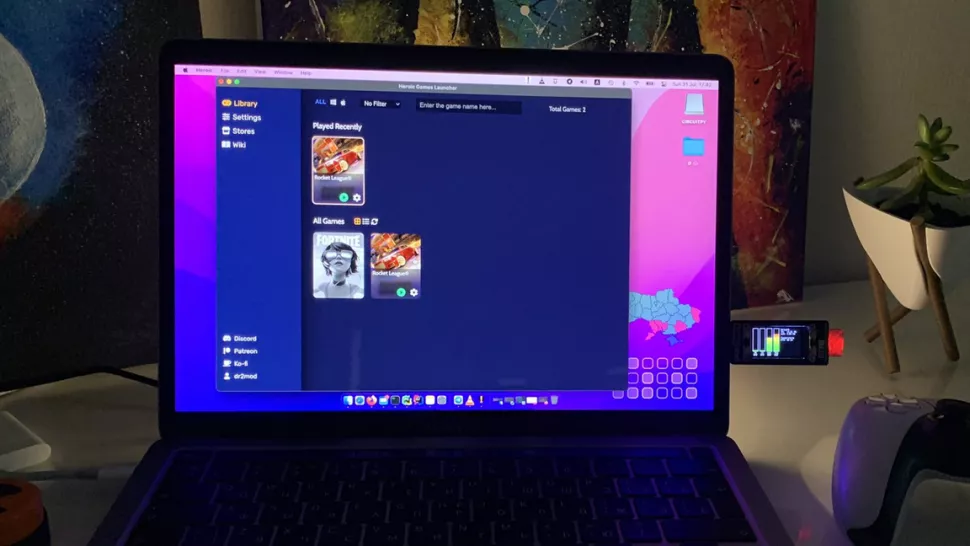
  • Raspberry Pi Pico Used in Plug and Play System Monitor | Tom's Hardware

    Dmytro Panin is at it again, creating a teeny system monitor for his MacBook from scratch with help from our favorite microcontroller, the Raspberry Pi Pico. This plug-and-play system monitor (opens in new tab) lets him keep a close eye on resource usage without having to close any windows or launch any third-party programs. The device is Pico-powered and plugs right into the MacBook to function. It has a display screen that showcases a custom GUI featuring four bar graphs that update in real-time to show the performance of different components, including the CPU, GPU, memory, and SSD usage. It makes it possible to see how hard your PC is running at a glance.

Security Leftovers

How to Apply Accent Colour in Ubuntu Desktop

A step-by-step tutorial on how to apply accent colour in Ubuntu desktop (GNOME) with tips for Kubuntu and others. Read more