



today's howtos
Submitted by Roy Schestowitz on Monday 1st of August 2022 04:48:15 PM
Filed under

-
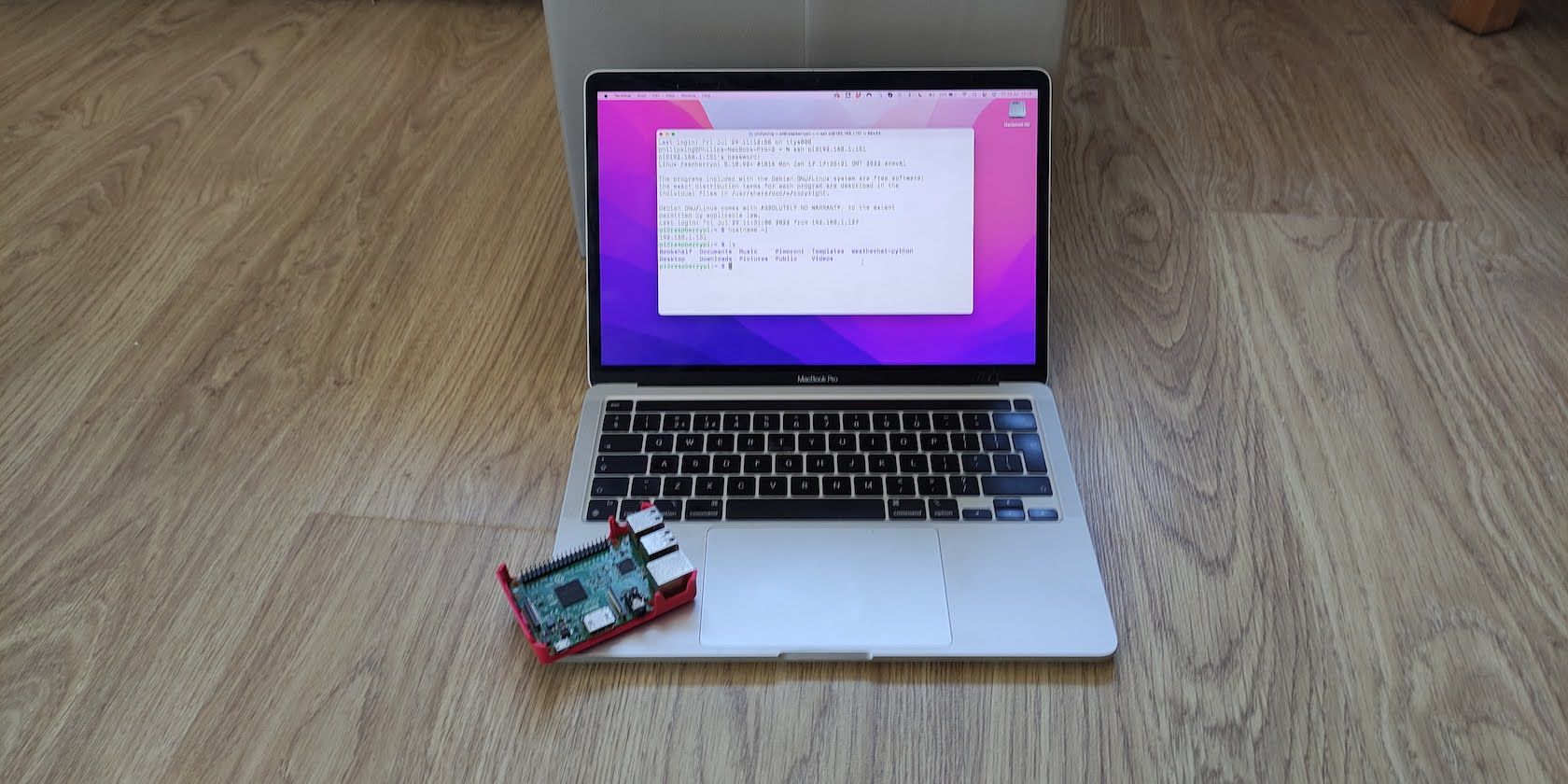
How to SSH Into a Raspberry Pi for Remote Access
When running a project on a headless Raspberry Pi, it may not always be convenient to plug it into a monitor when you want to change something, but you don’t need to. You can access and control the Raspberry Pi remotely via SSH (Secure SHell) from another computer or even a smartphone on the same network. This guide will first show you how to enable SSH, then how to SSH into Raspberry Pi from another device.
-
How to install AWS command line interface (CLI) on Ubuntu | FOSS Linux
In recent years, Cloud computing has increased rapidly, with 94% of all enterprises using cloud services. Many platforms provide cloud services, such as AWS, Microsoft Azure, Google Cloud, etc.
There are four cloud computing types: private clouds, public clouds, hybrid clouds, and multi-clouds. Ubuntu fully supports all these clouds, making it the most popular Linux distribution for cloud platforms. This article will discuss AWS and installing AWS CLI (AWS Command Line Interface) on Ubuntu.
-
How to Secure Your Linux Servers With SELinux - Make Tech Easier
SELinux can help you secure your server from malfunctioning processes or applications. Developed by the NSA (National Security Agency) to secure government devices from attackers, the security enhanced (SE) Linux architecture uses security protocols to restrict access to system resources. Find out how you can use it for your own server.
-
How to Install Linux Kernel 5.19 in Ubuntu 22.04 LTS | UbuntuHandbook
Linux Kernel 5.19 was released! Ubuntu Mainline PPA has made the packages for testing purpose.
-
How to Use Autojump Advanced Navigation in Linux - ByteXD
In this article you will learn how to use autojump to navigate easily between directories without specifying their full path or executing numerous cd commands.
-
How To Extract Tar Files Into a Specific Directory - ByteXD
tar is a very old command line utility from the seventies. tar stands for Tape ARchive, and it is used for creating and extracting archive files. Additionally, tar can be used to compress and decompress these archived files.
In other words, the tar program packs many files and folders into a single logical file for easy and fast transmission (e.g. FTP), optionally compressed. This essential tool is implementing various compression algorithms such as gzip, xz, and bzip2.
Tar comes with an enormous amount of options which are and can be confusing for even experienced Linux users.
However this article will cover only the subject of how to extract tar archives using special tar options to specify the target directory; in addition, we will mention other necessary tar arguments.
-
How to use the sudo Command in Linux - Pi My Life Up
The sudo command allows any user within the sudo group to run commands as another user. By default, sudo will run as root, but you can specify any user you want. If you plan on using a Linux operating system, you will likely use this command quite a bit.
You will most likely use this command when you run a command requiring root or super user privileges. For example, many user administration commands will need the user to have root privileges to run. In less likely scenarios, you may need to use a different user to run a specific command.
»
-

- Login or register to post comments
 Printer-friendly version
- 708 reads
 PDF version
More in Tux Machines
- Highlights
- Front Page
- Latest Headlines
- Archive
- Recent comments
- All-Time Popular Stories
- Hot Topics
- New Members
today's howtos
| Open Hardware: XON/XOFF and Raspberry Pi Pico
|
Security Leftovers
| How to Apply Accent Colour in Ubuntu Desktop
A step-by-step tutorial on how to apply accent colour in Ubuntu desktop (GNOME) with tips for Kubuntu and others.
|


 This section of TuxMachines will no longer have new stories in it (with some caveats, including this post). To see the latest stories go to


.svg_.png)

 Content (where original) is available under CC-BY-SA, copyrighted by original author/s.



Recent comments
2 days 7 hours ago
2 days 11 hours ago
2 days 11 hours ago
3 days 18 hours ago
3 days 19 hours ago
3 days 20 hours ago
3 days 20 hours ago
3 days 21 hours ago
3 days 23 hours ago
4 days 1 hour ago